
How to Transcribe a Zoom Meeting (3 Methods That Work)
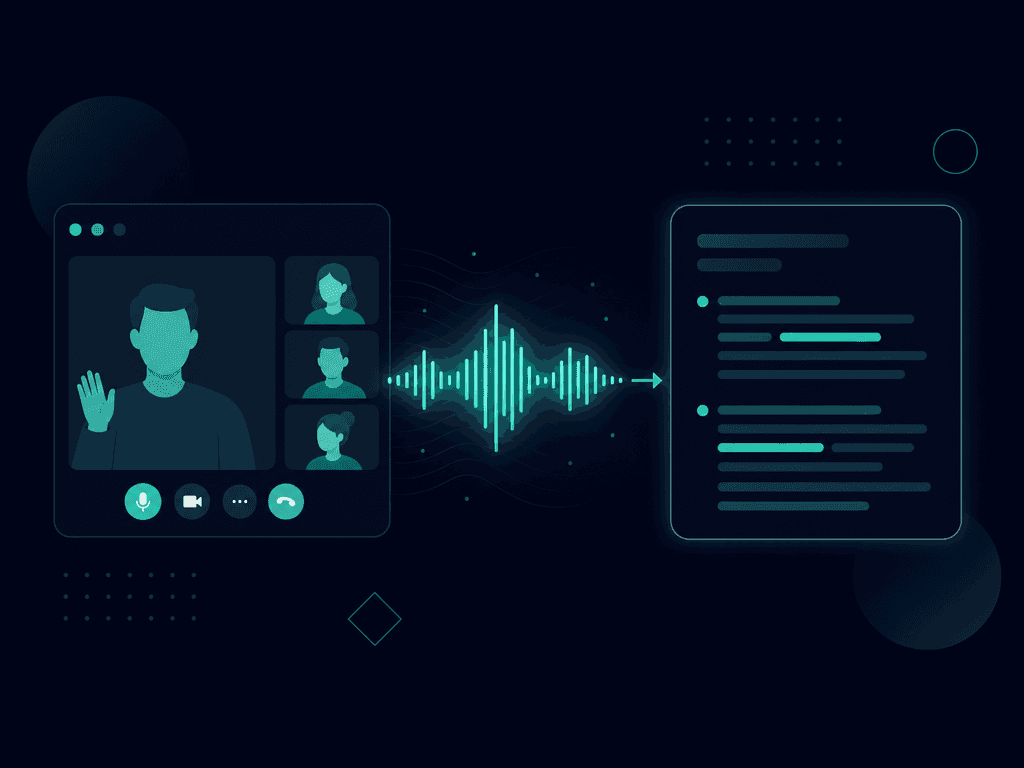
You need to transcribe a Zoom meeting — maybe for meeting minutes, a client record, accessibility, or just because nobody wants to rewatch an hour of video. Zoom can do it natively, but the feature is buried in settings, locked behind paid plans, and the raw output needs work. This guide covers three practical methods: Zoom's live transcription, cloud recording transcripts, and an AI note-taker that transcribes and summarizes for you.
By the end, you'll know exactly which method fits your plan, how to enable it in under five minutes, and how to get a transcript people will actually read.
Method 1: Zoom live transcription (real-time captions)
Live transcription shows captions during the meeting and can generate a transcript you save at the end. Good for accessibility; limited for record-keeping.
Requirements: a paid Zoom plan (Pro, Business, or Enterprise) for the host, and the feature enabled in account settings.
Enable it once, in settings:
- Sign in to the Zoom web portal at zoom.us.
- Go to Settings > Meeting > In Meeting (Advanced).
- Toggle on Automated captions (and Full transcript if available on your plan).
- Save. This applies to all meetings you host from now on.
Use it during a meeting:
- In the meeting toolbar, click Show captions (or More > Captions on older versions).
- Set the speaking language when prompted.
- Participants can request transcription — as host, approve it from the pop-up.
- At the end of the meeting, view the full transcript from the captions panel and copy it out.
Limitations: the transcript lives inside the meeting window — there's no clean downloadable file unless you also record to the cloud. Accuracy drops with accents, crosstalk, and technical vocabulary. And on the free plan, you don't get any of this.
Method 2: Transcribe a Zoom meeting from a cloud recording
This is the most common route: record the meeting to the cloud, and Zoom generates a searchable audio transcript alongside the video.
Requirements: paid plan + cloud recording enabled + audio transcript enabled.
Setup (one time):
- In the Zoom web portal, go to Settings > Recording.
- Enable Cloud recording.
- Under cloud recording options, check Audio transcript.
- Save.
For each meeting:
- Start the meeting as host.
- Click Record > Record to the cloud.
- Run your meeting normally, then stop recording or end the meeting.
- Wait for processing — Zoom emails you when the recording and transcript are ready (a few minutes to an hour depending on length).
- Go to Recordings & Transcripts > Cloud recordings in the web portal.
- Open the recording: the transcript appears side by side with the video. Click any line to jump to that moment. Download it as a VTT file.
That VTT file is your transcript. It's timestamped, includes speaker labels (roughly), and opens in any text editor — though you'll want to strip the timestamps before pasting it into a document.
Forgot to enable audio transcript before recording? You can request a transcript afterward on some plans: open the cloud recording and look for the transcription option. If it's not there, upload the downloaded MP4 to a third-party transcription tool.
A checklist before you transcribe a Zoom meeting
Transcripts involve other people's words, so handle consent properly. Copy this checklist:
ZOOM TRANSCRIPTION CHECKLIST

Before the meeting:
☐ Confirm paid Zoom plan (free plan = no transcription)
☐ Enable Automated captions / Audio transcript in settings
☐ Add a line to the invite: "This meeting will be recorded
  and transcribed for our notes"

At the start, say:
"Quick note: this call is being recorded and transcribed so
we have accurate minutes. Everyone OK with that?"

During the meeting:
☐ Record to the cloud (not locally — no transcript for local files)
☐ Ask people to speak one at a time for better accuracy
☐ Verbalize decisions: "For the record, we're deciding to..."

After the meeting:
☐ Download the VTT transcript from Recordings & Transcripts
☐ Clean it: remove timestamps, fix names, highlight decisions
☐ Share with attendees within 24 hours
☐ Store it somewhere searchable (not just Zoom's cloud, which
  auto-deletes per your plan's retention)
How to improve Zoom transcription accuracy
Whatever method you pick, the raw accuracy depends on what happens in the meeting. Five habits that measurably improve transcripts:
- Use a real microphone. Laptop mics in echoey rooms are the number-one accuracy killer. A basic USB headset beats a $1,000 laptop's built-in mic.
- One speaker at a time. Crosstalk produces garbage text in every engine. As host, gently enforce it in meetings you know will be transcribed.
- Say names before speaking to people. "Sarah, what's your take?" helps both the transcript reader and any speaker-identification feature.
- Verbalize the important stuff. Numbers, dates, and decisions: "For the notes — the deadline is March 15th." It feels awkward once, then becomes a habit that saves the transcript.
- Avoid sharing audio over speakers. If you're playing a video or another call through room speakers, expect that section to be unusable.
Even with perfect habits, expect to fix proper nouns and domain-specific terms. Budget five minutes of cleanup per hour of meeting — or use a tool that lets you correct and search transcripts centrally.
Method 3: Transcribe a Zoom meeting with an AI note-taker
Native Zoom transcription gives you a wall of timestamped text. If what you actually need is "what was decided and who does what", an AI note-taker skips the cleanup entirely. Here's the workflow with Upmeet as an example:
- Connect your calendar to Upmeet — it detects your Zoom meetings automatically.
- The assistant joins the meeting (or paste the Zoom link manually). See how Upmeet works with Zoom for the two-minute setup.
- During the call, it transcribes everything in real time with speaker identification, in 30+ languages — useful when your meetings mix English and French.
- A couple of minutes after the meeting, you receive a structured summary: key points, decisions, action items with owners — plus the full transcript.
- Later, instead of searching a VTT file, chat with your notes: "What deadline did we agree on?" gives you the exact quote.
The Zoom integration works with any Zoom plan — including free — because the transcription happens outside Zoom. No admin settings to enable, no cloud recording storage to manage, no VTT cleanup.
Zoom native vs AI transcription: which should you pick?
Use Zoom's native transcription if: you already pay for Zoom, you need live captions for accessibility, and a rough transcript is good enough.
Use an AI note-taker if: you're on the free Zoom plan, your meetings are multilingual, you need summaries and action items rather than raw text, or you want transcripts searchable across all your meetings — not scattered in Zoom's cloud.
Many teams use both: Zoom captions live for accessibility, Upmeet for the actual record. They're not exclusive.
FAQ
Can you transcribe a Zoom meeting for free?
Zoom's built-in transcription (live captions and cloud recording transcripts) requires a paid plan. On the free plan, your options are third-party tools: AI note-takers like Upmeet (free trial available) transcribe Zoom meetings independently of your Zoom subscription.
How do I transcribe a Zoom meeting I already recorded?
If it was a cloud recording with audio transcript enabled, find it under Recordings & Transcripts in the Zoom web portal. If the transcript wasn't enabled, download the MP4 and upload it to a transcription service — or to Upmeet, which will transcribe and summarize the file.
Where are Zoom transcripts stored?
Cloud recording transcripts live in the Zoom web portal under Recordings & Transcripts, attached to each recording. They follow your plan's cloud storage retention and can be auto-deleted — download important transcripts as VTT files.
How accurate is Zoom's transcription?
Typically 80–90% in clear, single-language audio with good microphones. Accuracy drops with accents, overlapping speakers, poor audio, and technical terms. Always review names, numbers, and decisions before sharing a transcript.
Can Zoom transcribe meetings in languages other than English?
Zoom's automated captions support a growing list of languages, but coverage and quality vary. If your meetings regularly switch languages, a multilingual AI note-taker handles language detection per speaker more reliably.
Does Zoom notify participants when a meeting is transcribed?
When you record to the cloud, Zoom notifies all participants. Live captions alone don't trigger the same banner — but best practice (and the law in many places) is to announce transcription verbally at the start.
Get transcripts you'll actually use
Transcribing a Zoom meeting natively works, but you end up with timestamped text that still needs cleaning, summarizing, and organizing. If the goal is a record your team will use — decisions, action items, searchable history — skip the manual work.
Try Upmeet free for 7 days: automatic transcription and summaries for every Zoom meeting, on any Zoom plan, in 30+ languages. Connect your calendar once, and every meeting documents itself.